> For the complete documentation index, see [llms.txt](https://nucode.gitbook.io/nuseries/llms.txt). Markdown versions of documentation pages are available by appending `.md` to page URLs; this page is available as [Markdown](https://nucode.gitbook.io/nuseries/dks/nu-54v-dk.md).
# NU-54V DK
**CONTENTS** [Downloads](#downloads) | [Realistic View](#realistic-view) | [Pin Layout](#pin-layout) | [User Manual](#user-manual) | [DAP Firmware Update](#dap-firmware-update)
***
## **Downloads**
{% hint style="info" %}
You can check some **Demo codes** [here.](/nuseries/downloads/nu-54v-dk.md#demo-code)
{% endhint %}
## **Realistic View**
## **Pin Layouts**
## **User Manual - SWD / UART**
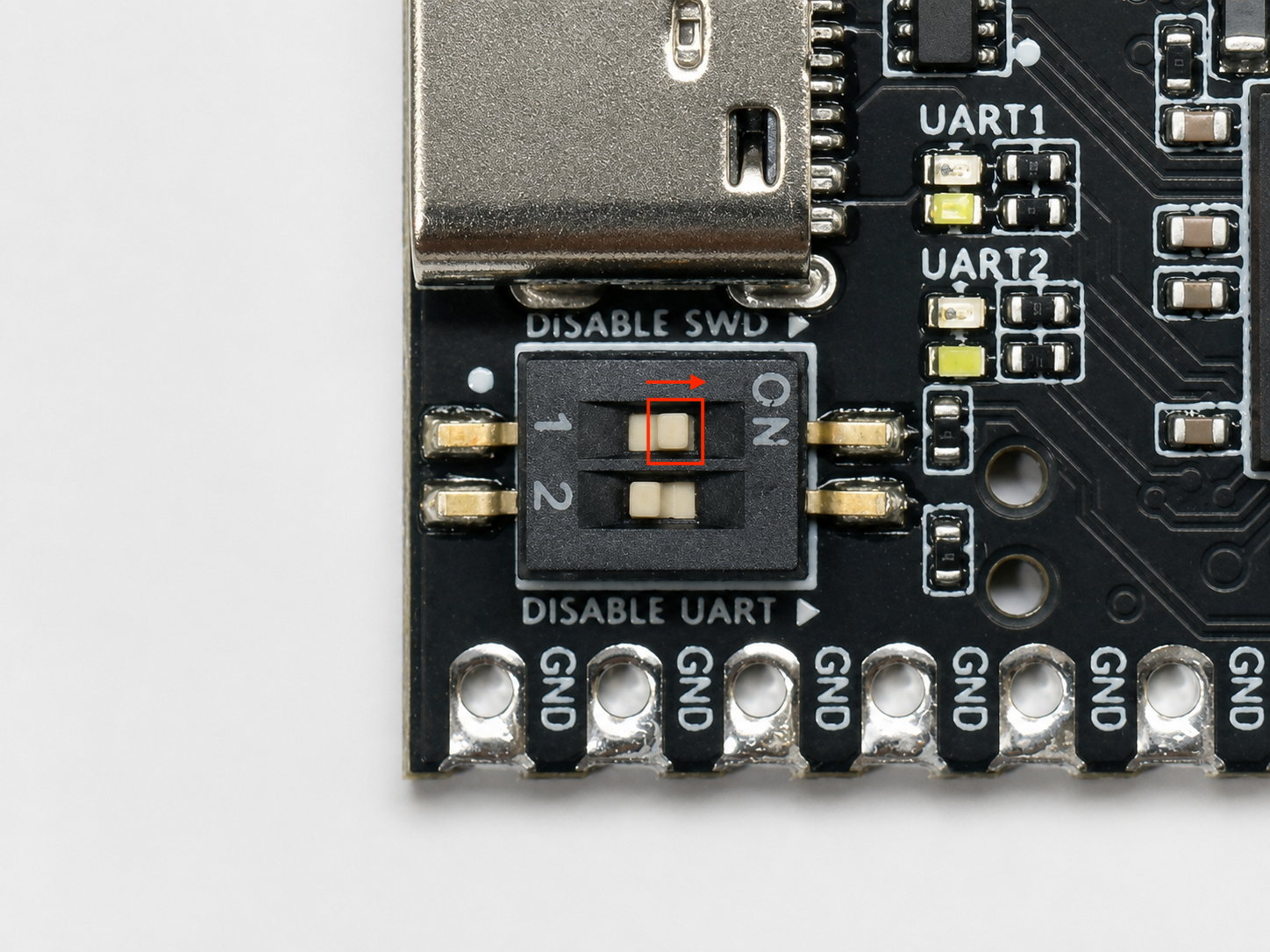
On the lower-left side of the NU-54V DK, there are two toggle switches labeled **DISABLE SWD** and **DISABLE UART**.
These switches allow the user to configure the connection between the NU-54V DK and the on-board debug interface depending on the intended use.
{% hint style="warning" %}
It is recommended to disconnect the USB cable and any external power source before changing the switch settings.
{% endhint %}
#### **Switch Configuration**
| Switch | OFF | ON |
| -------------------- | ------------------------------------ | ---------------------------------------------------------------------------------------------------- |
| **1 – DISABLE SWD** | On-board DAP SWD connection enabled | On-board DAP SWD connection disabled for external debugger use |
| **2 – DISABLE UART** | On-board DAP UART connection enabled | On-board DAP UART connection disconnected, allowing the UART pins to be used as general-purpose pins |
#### **Flashing with J-Link**
To program or debug the NU-54V DK using an external **SEGGER J-Link**, move **Switch 1 (DISABLE SWD)** to the **ON** position.
This disconnects the SWD interface of the on-board DAP from the NU-54V DK, allowing an external J-Link debugger to access the target SWD interface.
{% hint style="info" %}
The NU-54V DK's SWD functionality itself is not disabled. Only the SWD connection between the on-board DAP and the NU-54V DK is disconnected.
{% endhint %}
After changing the switch to the ON position, the on-board DAP may report that it can no longer communicate with the NU-54V DK.
When the NU-54V DK USB mass-storage drive, such as **N54V2PRE**, is opened, a `FAILURE.TXT` file may appear.
The `FAILURE.TXT` file may contain a message similar to:
This message is **expected when Switch 1 is set to ON**. It indicates that the SWD connection from the on-board DAP to the NU-54V DK has been successfully disconnected.
The NU-54V DK is now ready to be programmed or debugged using an external J-Link debugger.
#### **Flashing with the On-board DAP**
To program the target MCU using the **on-board DAP**, move **Switch 1 (DISABLE SWD)** to the **OFF** position.
This reconnects the on-board DAP to the target MCU through the SWD interface.
The NU-54V DK can then be programmed using either of the following methods:
**1) Drag-and-Drop Programming**
Build the application and obtain the generated `.hex` file.\
Drag and drop the `.hex` file onto the NU-54V DK USB mass-storage drive, such as **N54V2PRE**.
For detailed instructions on drag-and-drop programming, refer to the [NU-DAP Start Guide](https://nucode.gitbook.io/nuseries/downloads/nu-dap#start-guide).
**2) nRF Connect for VS Code**
The NU-54V DK can also be programmed directly from **nRF Connect for VS Code** without an external J-Link by using the [NU54DK Zephyr Board Definition](https://github.com/Nucode01/NU54DK_Zephyr_DTS).
\- Step 1. Download the NU54DK Zephyr DTS Package
Download the **NU54DK\_Zephyr\_DTS** repository as a ZIP file.
\- Step 2. Add the Board Definition
Extract the ZIP file and copy the `boards` directory into the root directory of your Zephyr application project.
\- Step 3. Create a Build Configuration
In **nRF Connect for VS Code**, create a new build configuration and select:
```
nrf54l15dk/nrf54l15/cpuapp/nu54dk
```
as the **Board target**.
Build the application and flash it to the NU-54V DK using the on-board DAP.
For detailed instructions on configuring the NU DK with nRF Connect SDK, refer to the [NU-40 DK VSCode Setup](https://nucode.gitbook.io/nuseries/dks/nu-40-dk#quick-start-with-nu-40-dk).
#### **Using the UART Pins for Other Functions**
Move **Switch 2 (DISABLE UART)** to the **ON** position when the UART pins connected to the on-board DAP need to be used for another function.
When this switch is ON, the electrical connection between the target MCU UART pins and the on-board DAP UART interface is disconnected.
The MCU pins can then be configured and used for other peripheral or GPIO functions supported by the MCU.
When **Switch 2 is OFF**, the UART connection to the on-board DAP is enabled and can be used for serial communication between the target MCU and the host PC.
#### **Using Only One of the UART Pins for Another Function**
If only one of the UART-related pins needs to be disconnected from the on-board DAP, the corresponding **solder bridge** can be opened instead of disabling both UART connections with Switch 2.
{% hint style="danger" %}
Always disconnect USB and all external power sources before modifying a solder bridge.
{% endhint %}
Refer to the [NU-54V DK schematic](https://nucode.gitbook.io/nuseries/downloads/nu-54v-dk#schematic) for the exact solder bridge corresponding to each UART signal.
***
## **DAP Firmware Update**
#### **When should I update the DAP firmware?**
An earlier version of the On-Board DAP firmware had a CMSIS-DAP implementation issue that could affect certain erase and debug operations.
If you experience issues such as `ERASEALL` not working as expected, update the DAP firmware to the latest version using the procedure below.
#### **Download the Firmware**
Download the latest DAP firmware from the Firmware section on the Downloads page.
#### **How to Update the DAP Firmware**
{% stepper %}
{% step %}
#### Disconnect the USB Cable
Disconnect the USB cable from the NU-54V DK.
{% endstep %}
{% step %}
#### Enter DAP Bootloader Mode
Using metal tweezers or another conductive tool, short the two 1.27 mm bootloader pads shown below.
While keeping the pads shorted, connect the USB cable to the board.
If the board successfully enters Bootloader Mode:
* The white Heartbeat LED will blink faster than during normal operation.
* A USB mass-storage drive such as `N54V2P-BL` will appear on your computer.
{% endstep %}
{% step %}
#### Copy the Firmware File
Drag and drop the downloaded .nup file into the bootloader USB drive.
The firmware update will start automatically after the file is copied.
{% endstep %}
{% step %}
#### Verify the Firmware Version
After the update is complete, open `DETAILS.TXT` from the USB drive.
Check the firmware information, including:
```
Interface CRC: 0x................
Build ID: ...............
```
Confirm that the values match the firmware package you installed.
{% endstep %}
{% endstepper %}